- 動作確認日:2026-10-01
- n8nのバージョン:2.41.3(Docker、セルフホスト)
目次
① 結論:このワークフローでできること
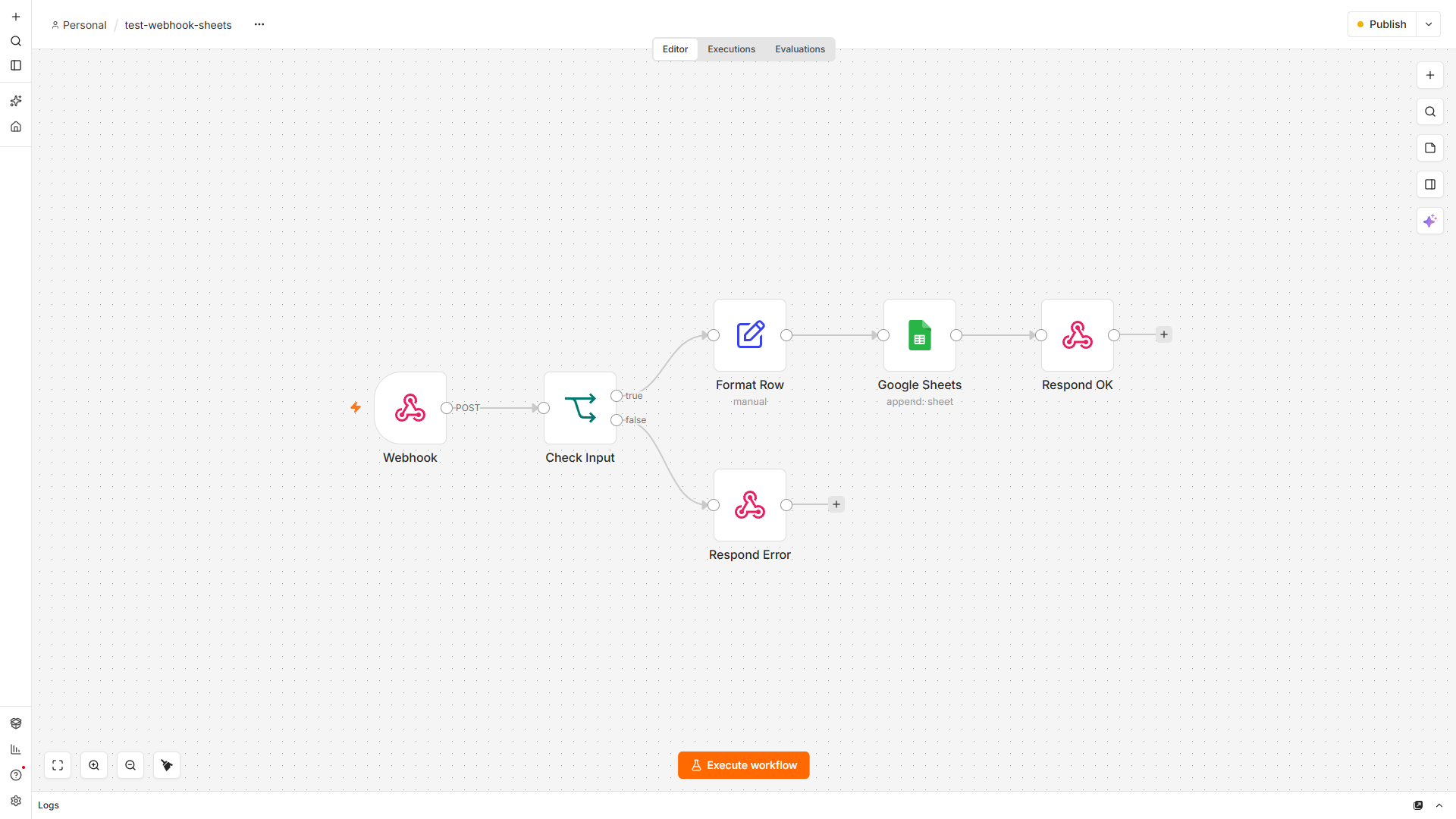
WebhookのURLにJSONをPOSTすると、その内容をGoogleスプレッドシートに1行追記します。問い合わせフォームや、ほかのツールからの通知を記録する用途を想定しています。
- 必須の項目(
nameとmessage)が欠けているときは、シートに書かずに400を返します。 - 受け取った日時(日本時間)を、自動で1列目に入れます。
- 使う認証情報(Credentials)は、Google Sheetsの1つだけです。
② 完成イメージ
次のようにPOSTします(localhost:5678 は自分のn8nのアドレスに置き換えてください)。
curl -X POST http://localhost:5678/webhook/test-webhook-sheets \
  -H "Content-Type: application/json" \
  -d '{"name":"山田テスト","email":"yamada@example.com","message":"資料を送ってください"}'
3通りのデータを送って確かめました(名前やアドレスは、テスト用の架空のものです)。
| 送ったデータ | 返ってきたもの | シート |
|---|---|---|
| name・email・message あり | 200 {"ok":true,"receivedAt":"2026-10-01 01:34:21"} | 1行追記 |
| name・message あり(emailなし) | 200 {"ok":true,"receivedAt":"2026-10-01 01:34:26"} | 1行追記(emailは空欄) |
| name・email あり(messageなし) | 400 {"ok":false,"error":"name と message は必須です"} | 書かない |
3回送ったあと、シートには2行だけが入っていました。
| receivedAt | name | message | |
|---|---|---|---|
| 2026-10-01 1:34:21 | 山田テスト | yamada@example.com | 資料を送ってください |
| 2026-10-01 1:34:26 | 佐藤テスト | (空欄) | 見積もりをお願いします |
実行したときの件数の流れは、次のとおりです。
| ノード | 正常なデータのとき | messageがないとき |
|---|---|---|
| Webhook | 1 | 1 |
| Check Input | 1(true側) | 1(false側) |
| Format Row | 1 | 動かない |
| Google Sheets | 1 | 動かない |
| Respond OK / Respond Error | Respond OK:1 | Respond Error:1 |
動かしてみて気づいた点が2つあります。
- 空のタブでも、1回目の実行で1行目に見出し(
receivedAt、name、email、message)が自動で入りました。 2026-10-01 01:34:21という文字で送った日時は、シート上では日時として扱われ、2026-10-01 1:34:21と表示されました。
③ 使うノードと必要なもの
必要なもの
- n8n(今回はバージョン2.41.3をDockerで動かしました)
- 記録先のGoogleスプレッドシートと、タブ(今回は
webhook-logという名前のタブ。中身は空で大丈夫です) - 認証情報:Google Sheets OAuth2 API(Google Cloudで作ったOAuthクライアントを使います)
使うノード
| ノード | 役割 | 設定したこと |
|---|---|---|
| Webhook | データを受け取る | HTTP Method:POST、Path:test-webhook-sheets、Respond:Using 'Respond to Webhook' Node |
| If(Check Input) | 必須の項目があるか確かめる | name と message が両方とも空でない(is not empty、AND) |
| Edit Fields(Format Row) | シートに書く4つの項目を作る | 下の表のとおり |
| Google Sheets | シートに1行追記する | Operation:Append Row、Sheet:By Name webhook-log、Mapping:Map Automatically |
| Respond to Webhook(Respond OK) | 記録できたことを返す | Respond With:JSON、本文:{{ { ok: true, receivedAt: $json.receivedAt } }} |
| Respond to Webhook(Respond Error) | 必須の項目がないことを返す | Respond With:JSON、Response Code:400 |
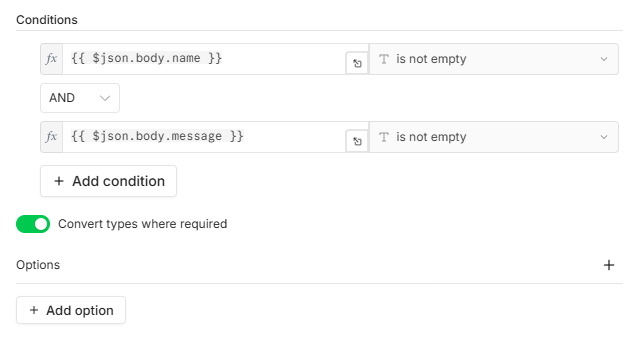
Check Inputでは、受け取ったJSONの name と message が空でないかを見ています。POSTされたJSONは、Webhookノードの出力では body の中に入るので、$json.body.name のように書きます。
Format Rowでは、次の4つの項目を作っています。
| 項目名 | 値 |
|---|---|
receivedAt | {{ $now.setZone('Asia/Tokyo').toFormat('yyyy-MM-dd HH:mm:ss') }} |
name | {{ $json.body.name }} |
email | {{ $json.body.email || '' }} |
message | {{ $json.body.message }} |
receivedAt:n8nが受け取った時刻を、日本時間に直しています。email:送られてこなかったときは、空の文字にしています。
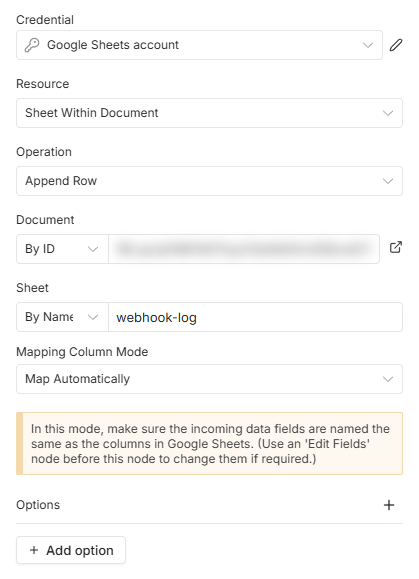
Google Sheetsノードでは、Sheetを「By Name」で webhook-log と指定しました。タブの名前で指定しておくと、同じスプレッドシートの別のタブに書き分けたいときに、名前を変えるだけで済みます。
④ JSON
n8nの公開API(POST /api/v1/workflows)でこのJSONからワークフローを作成し、有効化してから、上の結果を確認しました。
使うときは、次の2か所を自分の環境に合わせて書き換えてください。
YOUR_SPREADSHEET_ID:記録先のスプレッドシートのID(URLの/d/と/editの間の文字列)YOUR_CREDENTIAL_ID:n8nに登録したGoogle Sheetsの認証情報のID。読み込んだあとに、ノードの画面で認証情報を選び直しても大丈夫です。
{
  "name": "test-webhook-sheets",
  "nodes": [
    { "parameters": { "httpMethod": "POST", "path": "test-webhook-sheets", "responseMode": "responseNode", "options": {} },
      "id": "a5000000-0001-4000-8000-000000000001", "name": "Webhook", "type": "n8n-nodes-base.webhook", "typeVersion": 2, "position": [0, 0], "webhookId": "a5000000-aaaa-4000-8000-000000000001" },
    { "parameters": {
        "conditions": {
          "options": { "caseSensitive": true, "leftValue": "", "typeValidation": "loose", "version": 2 },
          "conditions": [
            { "id": "c1", "leftValue": "={{ $json.body.name }}", "rightValue": "", "operator": { "type": "string", "operation": "notEmpty", "singleValue": true } },
            { "id": "c2", "leftValue": "={{ $json.body.message }}", "rightValue": "", "operator": { "type": "string", "operation": "notEmpty", "singleValue": true } }
          ],
          "combinator": "and"
        },
        "looseTypeValidation": true,
        "options": {} },
      "id": "a5000000-0002-4000-8000-000000000002", "name": "Check Input", "type": "n8n-nodes-base.if", "typeVersion": 2.2, "position": [220, 0] },
    { "parameters": {
        "assignments": { "assignments": [
          { "id": "a1", "name": "receivedAt", "value": "={{ $now.setZone('Asia/Tokyo').toFormat('yyyy-MM-dd HH:mm:ss') }}", "type": "string" },
          { "id": "a2", "name": "name", "value": "={{ $json.body.name }}", "type": "string" },
          { "id": "a3", "name": "email", "value": "={{ $json.body.email || '' }}", "type": "string" },
          { "id": "a4", "name": "message", "value": "={{ $json.body.message }}", "type": "string" }
        ] },
        "options": {} },
      "id": "a5000000-0003-4000-8000-000000000003", "name": "Format Row", "type": "n8n-nodes-base.set", "typeVersion": 3.4, "position": [440, -100] },
    { "parameters": {
        "operation": "append",
        "documentId": { "__rl": true, "value": "YOUR_SPREADSHEET_ID", "mode": "id" },
        "sheetName": { "__rl": true, "value": "webhook-log", "mode": "name" },
        "columns": { "mappingMode": "autoMapInputData", "value": {}, "matchingColumns": [], "schema": [] },
        "options": {} },
      "id": "a5000000-0004-4000-8000-000000000004", "name": "Google Sheets", "type": "n8n-nodes-base.googleSheets", "typeVersion": 4.5, "position": [660, -100],
      "credentials": { "googleSheetsOAuth2Api": { "id": "YOUR_CREDENTIAL_ID", "name": "Google Sheets account" } } },
    { "parameters": { "respondWith": "json", "responseBody": "={{ { ok: true, receivedAt: $json.receivedAt } }}", "options": {} },
      "id": "a5000000-0005-4000-8000-000000000005", "name": "Respond OK", "type": "n8n-nodes-base.respondToWebhook", "typeVersion": 1.1, "position": [880, -100] },
    { "parameters": { "respondWith": "json", "responseBody": "={{ { ok: false, error: 'name と message は必須です' } }}", "options": { "responseCode": 400 } },
      "id": "a5000000-0006-4000-8000-000000000006", "name": "Respond Error", "type": "n8n-nodes-base.respondToWebhook", "typeVersion": 1.1, "position": [440, 120] }
  ],
  "connections": {
    "Webhook": { "main": [[{ "node": "Check Input", "type": "main", "index": 0 }]] },
    "Check Input": { "main": [[{ "node": "Format Row", "type": "main", "index": 0 }], [{ "node": "Respond Error", "type": "main", "index": 0 }]] },
    "Format Row": { "main": [[{ "node": "Google Sheets", "type": "main", "index": 0 }]] },
    "Google Sheets": { "main": [[{ "node": "Respond OK", "type": "main", "index": 0 }]] }
  },
  "settings": { "executionOrder": "v1" }
}
⑤ つまずきポイントと対処
このワークフロー自体は、1回目の実行でエラーなく動きました。ここでは、確認の途中で実際に起きたことを書きます。
PowerShellで400の応答の本文が空に見える
- 起きたこと:Windows PowerShell 5.1 の
Invoke-WebRequestでPOSTしたところ、400は返ってきたものの、本文({"ok":false,...})が空に見えました。 - 原因:n8n側の問題ではありませんでした。
curl.exeで送ると、本文は正しく返っていました。PowerShell 5.1では、エラーになった応答の本文は$_.ErrorDetails.Messageから読む必要があります。 - 対処:確認には
curlを使うか、PowerShellではcatchの中で$_.ErrorDetails.Messageを見るようにしました。
⑥ 応用アイデア
どれも、まだ試していないアイデアです。
- Googleフォームや自作のフォームから、このWebhookにPOSTする
- 記録したあとに、SlackやDiscordへ「問い合わせが来ました」と通知する
- Check Inputの条件に「emailの形になっているか」を足す
- Webhookに認証(Header Auth)を付けて、知らない人から書き込まれないようにする