- 動作確認日:2026-10-01
- n8nのバージョン:2.41.3(Docker、セルフホスト)
目次
① 結論:このワークフローでできること
天気予報のAPI(Open-Meteo)から東京の今日の予報を取り、「日付・最高気温・最低気温・降水確率」をGoogleスプレッドシートに1日1行で記録します。
- Open-MeteoはAPIキーなしで使えます。登録は不要です。
- 同じ日に何回実行しても、その日の行が上書きされるだけで、行は増えません。
- 使う認証情報(Credentials)は、Google Sheetsの1つだけです。
- 動作確認のため、起動にはWebhookを使っています。実際に使うときは、Schedule Triggerで毎朝実行する想定です。
② 完成イメージ
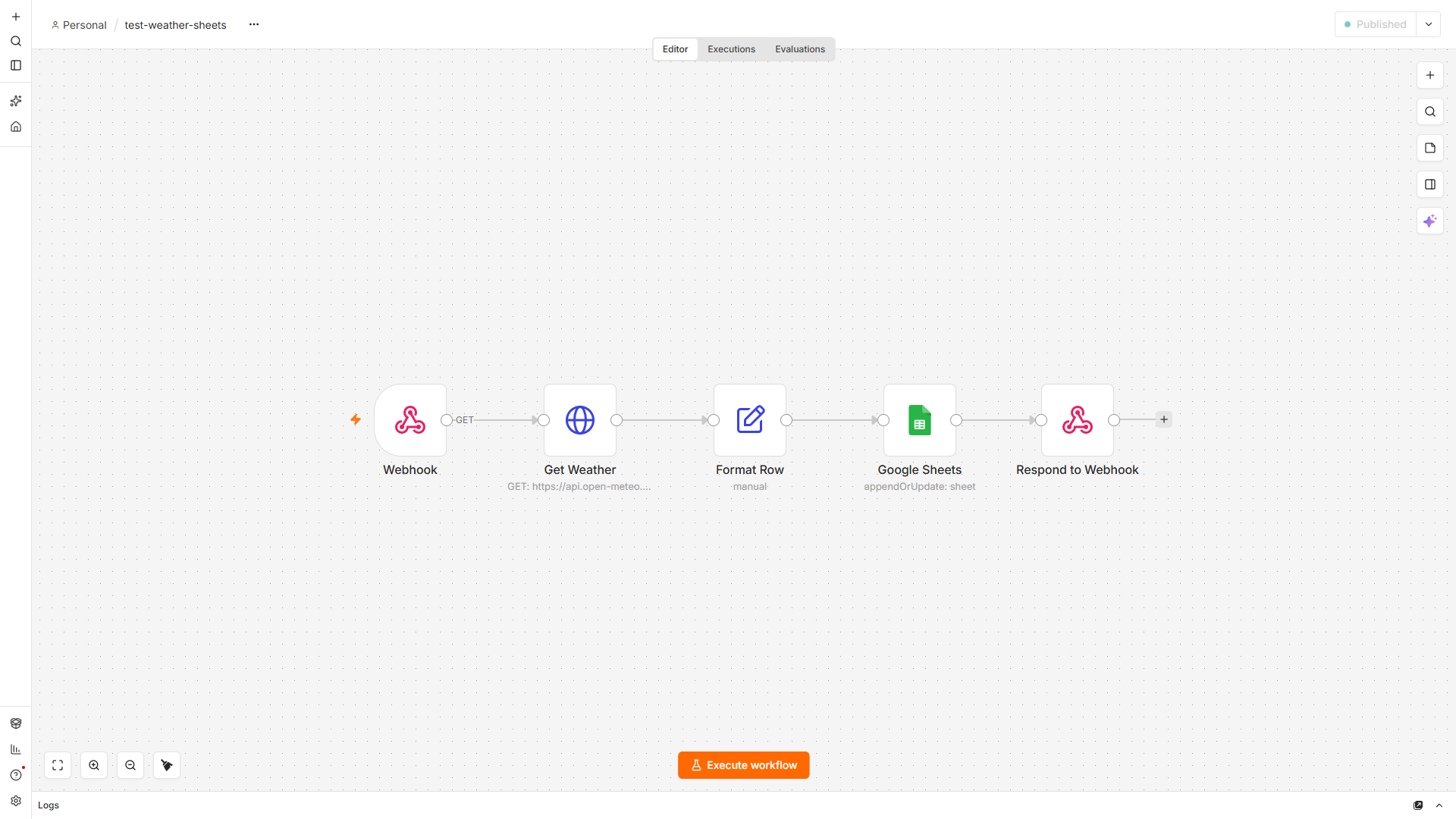
WebhookのURLにGETでアクセスすると、シートに記録したうえで、次の文章が返ってきます(実際の出力です)。

2026-10-01 東京:最高 26.7℃ / 最低 18.5℃ / 降水確率 6%(シートに記録しました)同じ日に2回実行したあと、シートは1行のままでした。
| date | city | maxTemp | minTemp | rainChance | recordedAt |
|---|---|---|---|---|---|
| 2026-10-01 | 東京 | 26.7 | 18.5 | 6 | 2026-10-01 1:35 |
実行したときの件数の流れは、次のとおりです。
| ノード | 出てきた件数 |
|---|---|
| Webhook | 1 |
| Get Weather(HTTP Request) | 1 |
| Format Row | 1 |
| Google Sheets | 1 |
| Respond to Webhook | 1 |
動かしてみて気づいた点が2つあります。
- 気温と降水確率は、Format Rowで「Number」にしたので、シートでも数値として入りました。そのままグラフや平均の計算に使えます。
recordedAtは2026-10-01 01:35という文字で送りましたが、シートでは日時として扱われ、2026-10-01 1:35と表示されました。
③ 使うノードと必要なもの
必要なもの
- n8n(今回はバージョン2.41.3をDockerで動かしました)
- 記録先のGoogleスプレッドシートと、タブ(今回は
weather-logという名前のタブ。中身は空で大丈夫です) - 認証情報:Google Sheets OAuth2 API(Google Cloudで作ったOAuthクライアントを使います)
- Open-Meteoの登録やAPIキー:不要
Open-Meteoは、商用でない使い方なら無料です。商用で使う場合は、Open-Meteoの利用条件を確認してください。
使うノード
| ノード | 役割 | 設定したこと |
|---|---|---|
| Webhook | 動作確認用の起動ボタン | Path:test-weather-sheets、Respond:Using 'Respond to Webhook' Node |
| HTTP Request(Get Weather) | Open-Meteoから予報を取る | Method:GET、URL:下のURL、Authentication:None |
| Edit Fields(Format Row) | シートに書く6つの項目を作る | 下の画像と表のとおり |
| Google Sheets | その日の行を追記、または上書きする | Operation:Append or Update Row、Sheet:By Name weather-log、Column to match on:date |
| Respond to Webhook | 記録した予報を文章で返す | Respond With:Text |
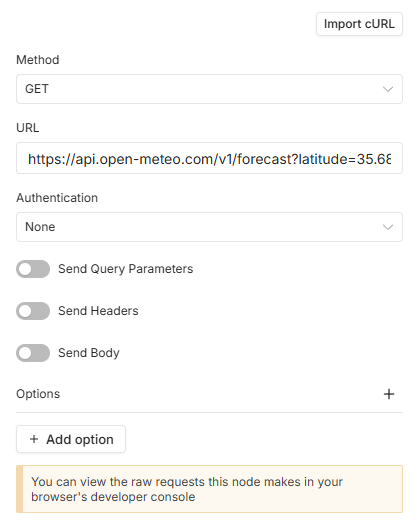
Get Weatherでは、次のURLを呼んでいます。
https://api.open-meteo.com/v1/forecast?latitude=35.6895&longitude=139.6917&daily=temperature_2m_max,temperature_2m_min,precipitation_probability_max&timezone=Asia%2FTokyo&forecast_days=1| パラメータ | 意味 |
|---|---|
latitude / longitude | 場所(今回は東京) |
daily | 取りたい項目(最高気温・最低気温・降水確率の最大値) |
timezone=Asia/Tokyo | 日付の区切りを日本時間にする |
forecast_days=1 | 今日の分だけ取る |
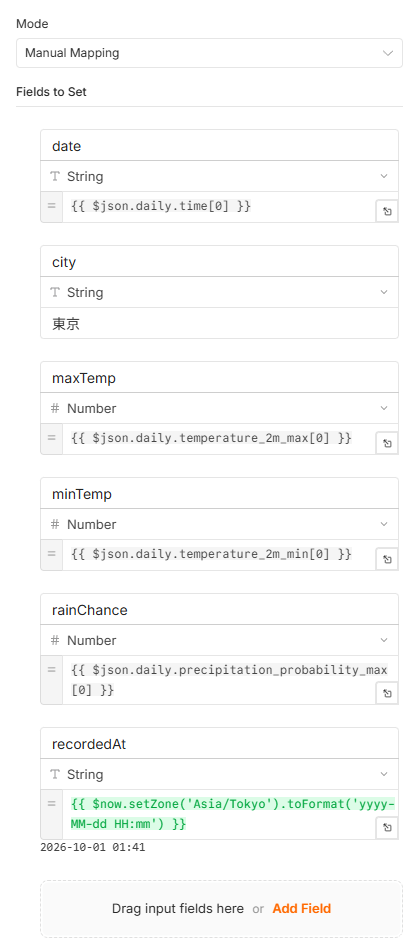
Format Rowでは、APIの結果から次の6つの項目を作っています。APIは項目ごとに配列([...])で返すので、今日の分として [0] を取り出しています。
| 項目名 | 型 | 値 |
|---|---|---|
date | String | {{ $json.daily.time[0] }} |
city | String | 東京 |
maxTemp | Number | {{ $json.daily.temperature_2m_max[0] }} |
minTemp | Number | {{ $json.daily.temperature_2m_min[0] }} |
rainChance | Number | {{ $json.daily.precipitation_probability_max[0] }} |
recordedAt | String | {{ $now.setZone('Asia/Tokyo').toFormat('yyyy-MM-dd HH:mm') }} |
Google Sheetsノードでは、照合する列(Column to match on)を date にしました。そのため、同じ日付の行があれば上書きし、なければ追記します。
④ JSON
n8nの公開API(POST /api/v1/workflows)でこのJSONからワークフローを作成し、有効化してから、上の結果を確認しました。
使うときは、次の2か所を自分の環境に合わせて書き換えてください。
YOUR_SPREADSHEET_ID:記録先のスプレッドシートのID(URLの/d/と/editの間の文字列)YOUR_CREDENTIAL_ID:n8nに登録したGoogle Sheetsの認証情報のID。読み込んだあとに、ノードの画面で認証情報を選び直しても大丈夫です。
{
  "name": "test-weather-sheets",
  "nodes": [
    { "parameters": { "path": "test-weather-sheets", "responseMode": "responseNode", "options": {} },
      "id": "b7000000-0001-4000-8000-000000000001", "name": "Webhook", "type": "n8n-nodes-base.webhook", "typeVersion": 2, "position": [0, 0], "webhookId": "b7000000-aaaa-4000-8000-000000000001" },
    { "parameters": { "url": "https://api.open-meteo.com/v1/forecast?latitude=35.6895&longitude=139.6917&daily=temperature_2m_max,temperature_2m_min,precipitation_probability_max&timezone=Asia%2FTokyo&forecast_days=1", "options": {} },
      "id": "b7000000-0002-4000-8000-000000000002", "name": "Get Weather", "type": "n8n-nodes-base.httpRequest", "typeVersion": 4.2, "position": [220, 0] },
    { "parameters": {
        "assignments": { "assignments": [
          { "id": "w1", "name": "date", "value": "={{ $json.daily.time[0] }}", "type": "string" },
          { "id": "w2", "name": "city", "value": "東京", "type": "string" },
          { "id": "w3", "name": "maxTemp", "value": "={{ $json.daily.temperature_2m_max[0] }}", "type": "number" },
          { "id": "w4", "name": "minTemp", "value": "={{ $json.daily.temperature_2m_min[0] }}", "type": "number" },
          { "id": "w5", "name": "rainChance", "value": "={{ $json.daily.precipitation_probability_max[0] }}", "type": "number" },
          { "id": "w6", "name": "recordedAt", "value": "={{ $now.setZone('Asia/Tokyo').toFormat('yyyy-MM-dd HH:mm') }}", "type": "string" }
        ] },
        "options": {} },
      "id": "b7000000-0003-4000-8000-000000000003", "name": "Format Row", "type": "n8n-nodes-base.set", "typeVersion": 3.4, "position": [440, 0] },
    { "parameters": {
        "operation": "appendOrUpdate",
        "documentId": { "__rl": true, "value": "YOUR_SPREADSHEET_ID", "mode": "id" },
        "sheetName": { "__rl": true, "value": "weather-log", "mode": "name" },
        "columns": { "mappingMode": "autoMapInputData", "value": {}, "matchingColumns": ["date"], "schema": [] },
        "options": {} },
      "id": "b7000000-0004-4000-8000-000000000004", "name": "Google Sheets", "type": "n8n-nodes-base.googleSheets", "typeVersion": 4.5, "position": [660, 0],
      "credentials": { "googleSheetsOAuth2Api": { "id": "YOUR_CREDENTIAL_ID", "name": "Google Sheets account" } } },
    { "parameters": { "respondWith": "text", "responseBody": "={{ $('Format Row').item.json.date }} {{ $('Format Row').item.json.city }}:最高 {{ $('Format Row').item.json.maxTemp }}℃ / 最低 {{ $('Format Row').item.json.minTemp }}℃ / 降水確率 {{ $('Format Row').item.json.rainChance }}%(シートに記録しました)", "options": {} },
      "id": "b7000000-0005-4000-8000-000000000005", "name": "Respond to Webhook", "type": "n8n-nodes-base.respondToWebhook", "typeVersion": 1.1, "position": [880, 0] }
  ],
  "connections": {
    "Webhook": { "main": [[{ "node": "Get Weather", "type": "main", "index": 0 }]] },
    "Get Weather": { "main": [[{ "node": "Format Row", "type": "main", "index": 0 }]] },
    "Format Row": { "main": [[{ "node": "Google Sheets", "type": "main", "index": 0 }]] },
    "Google Sheets": { "main": [[{ "node": "Respond to Webhook", "type": "main", "index": 0 }]] }
  },
  "settings": { "executionOrder": "v1" }
}
⑤ つまずきポイントと対処
このワークフロー自体は、1回目の実行でエラーなく動きました。
気をつける点として、Open-Meteoの daily の値は、項目ごとの配列で返ってきます。$json.daily.temperature_2m_max のままだと [26.7] のような配列になるので、[0] を付けて1つ目の値を取り出しています。
⑥ 応用アイデア
どれも、まだ試していないアイデアです。
- Webhookを「Schedule Trigger」に替えて、毎朝7時に記録する
latitudeとlongitudeを変えて、複数の都市を別々の行に記録する(照合する列をdateとcityの組み合わせにする)- 降水確率が50%以上の日だけ、SlackやDiscordに通知する
- 1か月分たまったら、シートのグラフ機能で気温の変化を見る